Key takeaways
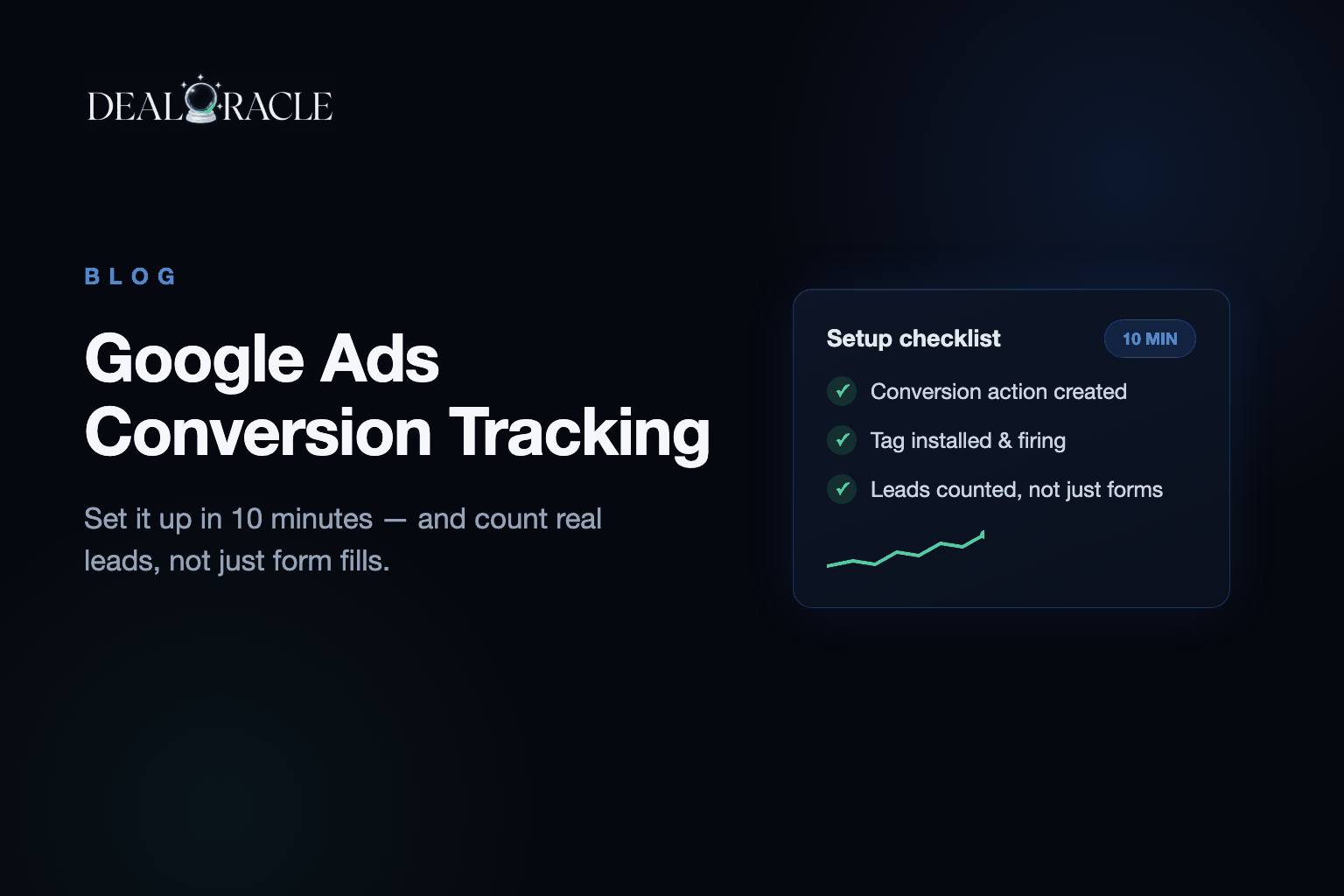
- A conversion action is Google's name for the thing you want it to count. If you have never created one, Google is counting nothing, which means it is guessing. - Three steps: create the action, connect it to your form, send a test lead and watch the status flip to Recording conversions. - Two settings matter more than they look: pick the right category, and set Count to One so a double submission is one lead. - The tag fires on the thank-you page, never the form page. Get that wrong and every visitor counts as a lead. - Counting forms is not counting sales. Google's bidding learns from what you count, so tell it which forms became customers.
Google Ads is spending your money to get form fills, and it thinks every form fill is a win. Half of yours are tire kickers. In ten minutes Google will be counting the right thing instead, and that is the difference between a campaign you scale and one you keep pausing.
The Problem
Out of the box, Google Ads has no idea what a lead is. Until you create a conversion action, which is just Google's name for the thing you want it to count, it is optimising toward clicks and guessing at the rest. Once it counts form fills it gets smarter. Once it counts which form fills became sales, it gets good.
How to Set It Up
1. Create the conversion action
Goals, then Conversions, then Summary. Top left, New conversion action. Choose Website, enter your domain, let it scan, then choose to set one up manually. Skip whatever it auto-suggests so you know exactly what it means.
Three settings decide whether this counts the right thing:
- Category. Pick Submit lead form if the form is the goal, or Book appointment if it is a calendar. This is how Google groups your results later.
- Count. Pick One. One person filling the form twice is one lead, not two. Every, the other option, is for shopping carts.
- Value. If you know roughly what a lead is worth, put it in. If you don't, leave it and come back.
Leave the windows at their defaults, click Done, then Save and continue. Google now has a bucket. Step two fills it.
2. Connect it to your form
Google needs a small bit of code on your site, called the Google tag, and a way to know the form was submitted. Three ways, and you only need one:
- Your site builder's Google Ads field. The easiest. Paste the ID in and pick the conversion you just made. Most of the big builders and GoHighLevel have this.
- Google Tag Manager. Pick that option and it walks you through a trigger. Set the trigger to your thank-you page.
- The code Google gives you. Put it on the thank-you page only, the page people see after they submit. Not the form page. The form page loading is not a lead.
If your form doesn't go to a thank-you page and just shows a message, the tag has nothing to fire on. Give it a thank-you page, or use the builder's built-in field, which fires on the submit itself.
| Setting | Pick | Why |
|---|---|---|
| Category | Submit lead form, or Book appointment for a calendar | How Google groups and reports the conversion |
| Count | One | A double submission is one lead, not two. Every is for shopping carts. |
| Value | What a lead is worth to you, or blank | Lets bidding weigh conversions. Blank is fine to start. |
| Where the tag fires | Thank-you page | The form page loading is not a lead |
| Attribution and windows | Defaults | Change later, once you have data |
3. Send a test lead and watch it land
Open your own form in one window and the Conversions Summary in the other. Fill the form in with your own details and submit it. Switch to the Summary and refresh once. The status flips from Unverified to Recording conversions and the count ticks to one. That is your lead, counted, inside a minute.
If it didn't flip, it is almost always one of two things: the tag is on the form page instead of the thank-you page, or the builder field is pointing at the wrong conversion. Check those two before you touch anything else.
That is the setup. If a form fill is your sale, you are done.
The gap this leaves
Here is a lead that came through that form three weeks ago and closed yesterday on a phone call. Google knows a form was filled three weeks ago. That is it. It counted the form as the win and moved on. The sale never reached it. Count forms and Google finds you more form fillers. Count sales and it finds you buyers.
Closing the Gap
Google has a fix for half of it. In the settings of the action you just made, turn on enhanced conversions for leads. It lets Google match a lead by the email and phone from the form, so leads it would have lost to blocked browsers still count. That gets you more of the form fills.
It still does not tell Google which form fills became customers. Something has to send the sale back when it actually happens, weeks later, with the same email and phone so Google can join the two.
How DealOracle Handles This
If your sale happens later, in a CRM, after a call, this is what DealOracle does. When the deal stage changes to closed, it sends that back to Google as a conversion carrying the email, the phone and the original click code, so Google can join the sale to the ad that started it. From then on Google is learning from buyers, not form fillers.
Do steps one to three today either way, because nothing else works without them. Then look at your last thirty leads and count how many actually bought. That number is how much of your bidding data Google currently has.
Bottom Line
Ten minutes gets Google counting form fills instead of guessing: create the action with Count set to One, fire the tag on the thank-you page, send a test lead and watch the status flip. If the form is the sale, stop there. If the sale happens later, Google is still learning from the wrong thing until something sends the closed deal back with the same email and phone. Set up the counting today; decide about the sale feed once you have counted how many of your last thirty leads actually bought.